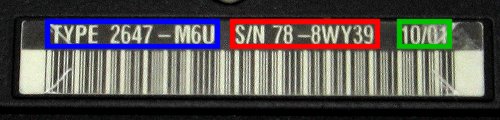
The label that's normally on the bottom of the laptop has the MODEL TYPE number in the format of 4 numbers (a "machine type"), a dash (-) and then 3 letters or numbers. Following the MODEL TYPE is the serial number (S/N) of the laptop. That information is 2 letters or numbers, a dash and then 5 more letters or numbers. Finally, there's a manufacturing date code that consists of 2 digits, a slash and then two more digits. Depending on the system, this is either year/month or month/year (see below).
The BIOS is accessed by pressing the F1 key right after the system has been powered on. Assuming there's no power up or Supervisor password set in the system, the main page of the BIOS is displayed right after the IBM/THINKPAD/LENOVO "splash" screen.
|
| This first example is from the bottom of a T22 system. The TYPE number is outlined in the blue box, the serial number in red and the manufacturing date in green. In this case, the date is in the format of MM/YY so 10/01 is October 2001. |
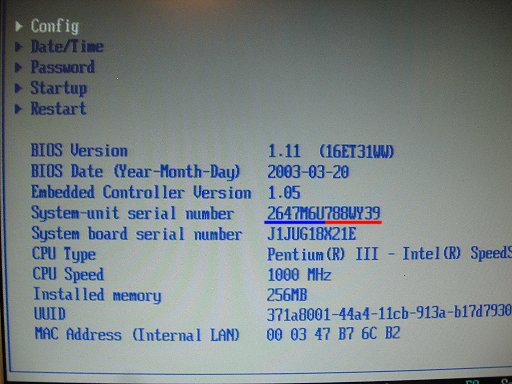 |
| The T22 BIOS contains the MODEL TYPE and serial number in the "System-unit serial number" line. The first 7 characters is the MODEL TYPE, here underlined in blue, and then the laptop's serial number, underlined in red. |
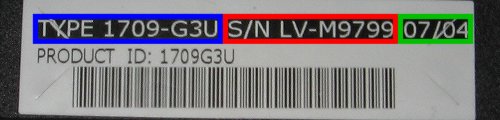 |
| The second example is the label that's on the bottom of an X60. Again, the blue box highlights the MODEL TYPE, the red box the serial number and the green box the manufacturing date. However, in this case, the date is in the format of YY/MM. |
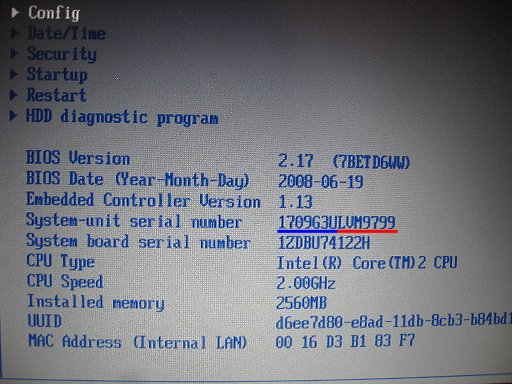 |
| As with the T22 system, the main X60 BIOS page shows the System-unit serial number which contains the TYPE and serial numbers. |
Once you have the MODEL TYPE, you can go to the Lenovo Support page and enter this information by clicking the "Use Quick Path" box (under the picture of the bar code label).
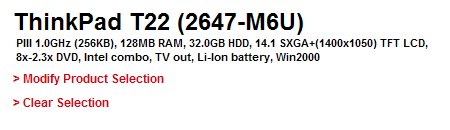 |
| This T22 originally came with a 1.0Ghz CPU, 128MB of RAM, 32GB hard drive and has the higher resolution SXGA+ screen. |
 |
| This X60 appears to be a special case: it did not ship with any RAM, hard drive or operating system. It was up to the customer to add those things. However, along with the usual XGA screen and Intel graphics, it has a T7200 CPU, an empty wireless slot, has Bluetooth and a fingerprint reader. |
Special mention: If the last three characters of the MODEL TYPE are "CTO", then that means the system is a "Configure To Order" build and you may not be able to use the Lenovo Support page to determine the configuration of the laptop. In some cases for CTO systems, the bar code label will also have a "Product ID:" field. You can enter that data at the Support site. If there is no Product ID, then try using the parts lookup site (link below) to see what shipped in the system. However, it can be hard to figure out exactly what each "part" is as they are generally described with code names.
You can also check the status of the warranty or see what parts shipped with the system. Simply enter the 4-digt machine type and serial number where requested.